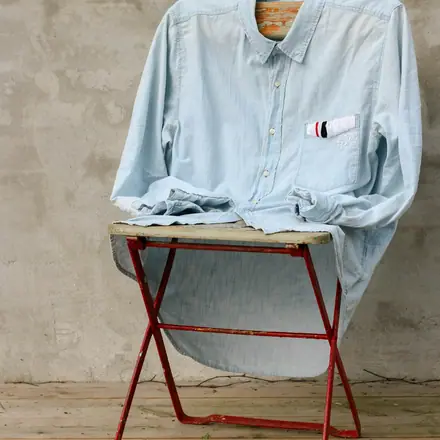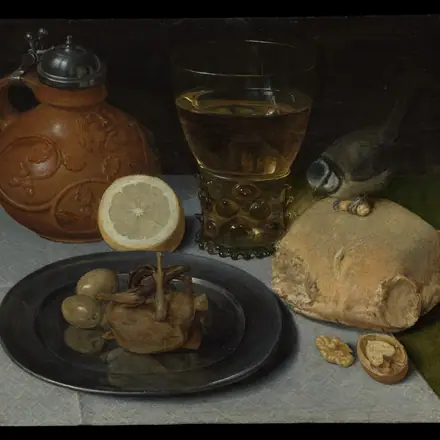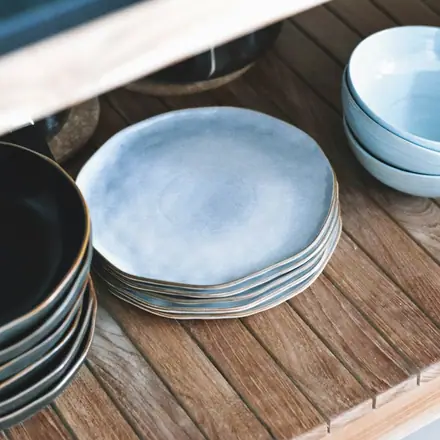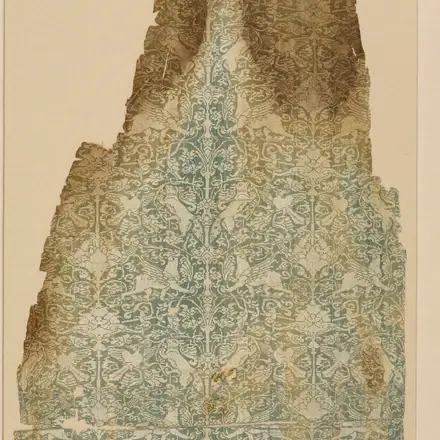


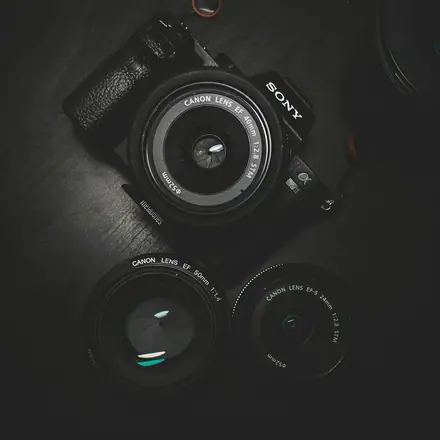
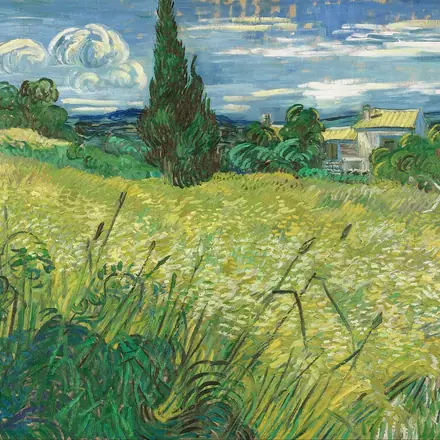
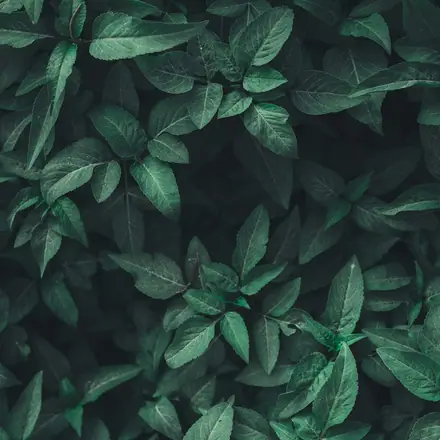



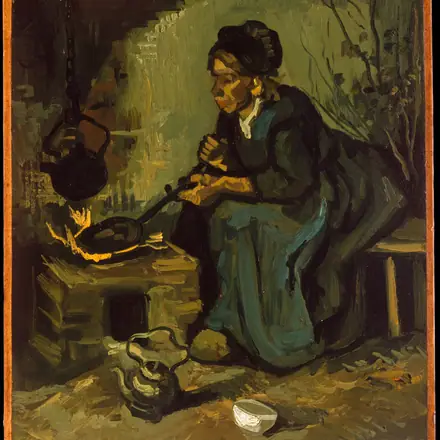



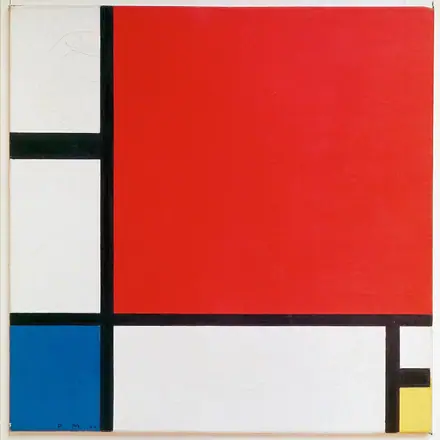
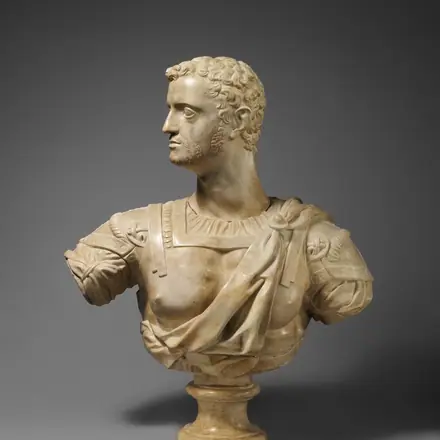
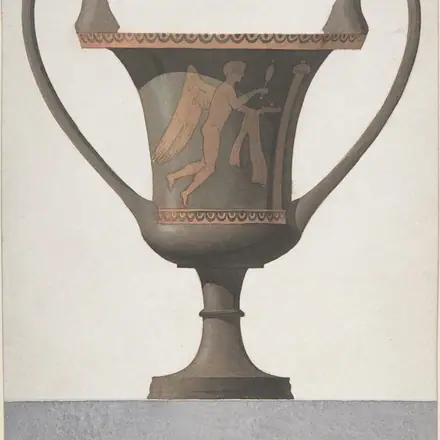


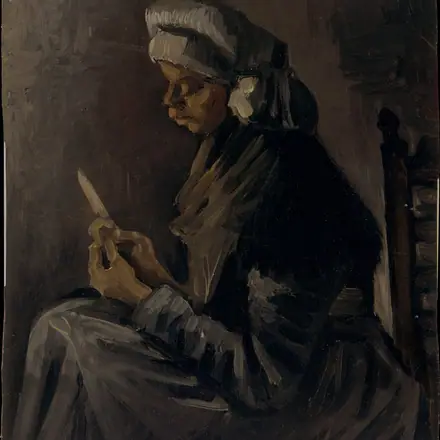









Your camera roll is for your life. Not Photos is for everything else.
Save images, From anywhere: Photos, Camera, Safari, URLs, Clipboard
A visual inspiration library as fluid as Apple Photos. Across Mac, iPad, and iPhone
iCloud Sync: Local-first by design, seamlessly synced with CloudKit
Privacy by Design: No algorithms. No social. No ads. Stored only on your device and in iCloud
Pay once, or subscribe

On iPhone and iPad, tap the Share button in Safari and choose Not Photos in the share sheet — the Share Extension saves the image straight into your collection. On Mac, use the Not Photos Safari extension to save directly from Safari, or drag, drop, or paste images into the app.
With Not Photos Pro, Not Photos automatically detects clipboard images on your Mac and saves them into your library as you copy — no manual paste needed.
Drag images from any app and drop them into Not Photos, paste them from the clipboard, or import image files directly — everything lands in your collections.
Not Photos Pro syncs your collections across iPhone, iPad, and Mac through your own iCloud account. Your library stays a personal collection — stored locally or in your iCloud — not on any public platform.
Yes. Not Photos is not a social network: there is no public feed, no followers, no messaging, and no public sharing platform. Images stay in a personal collection stored locally or in your own iCloud account, and the developer does not collect data from this app.